2. Navigate to the Cluddy Client directoryOpen a terminal and change the working directory to where cluddy_client.jar is located.
MacOS / Linux
Windows (PowerShell)
cd /path/to/cluddy-client
3. Run Cluddy Client
MacOS / Linux
Windows (PowerShell)
java -jar cluddy_client.jar
4. Check for environment variablesIf any environment variables are missing, incorrectly set, or the specified key files cannot be found, the application will display an error and will not start. In this case, repeat the steps from Client Environments page to configure them correctly.
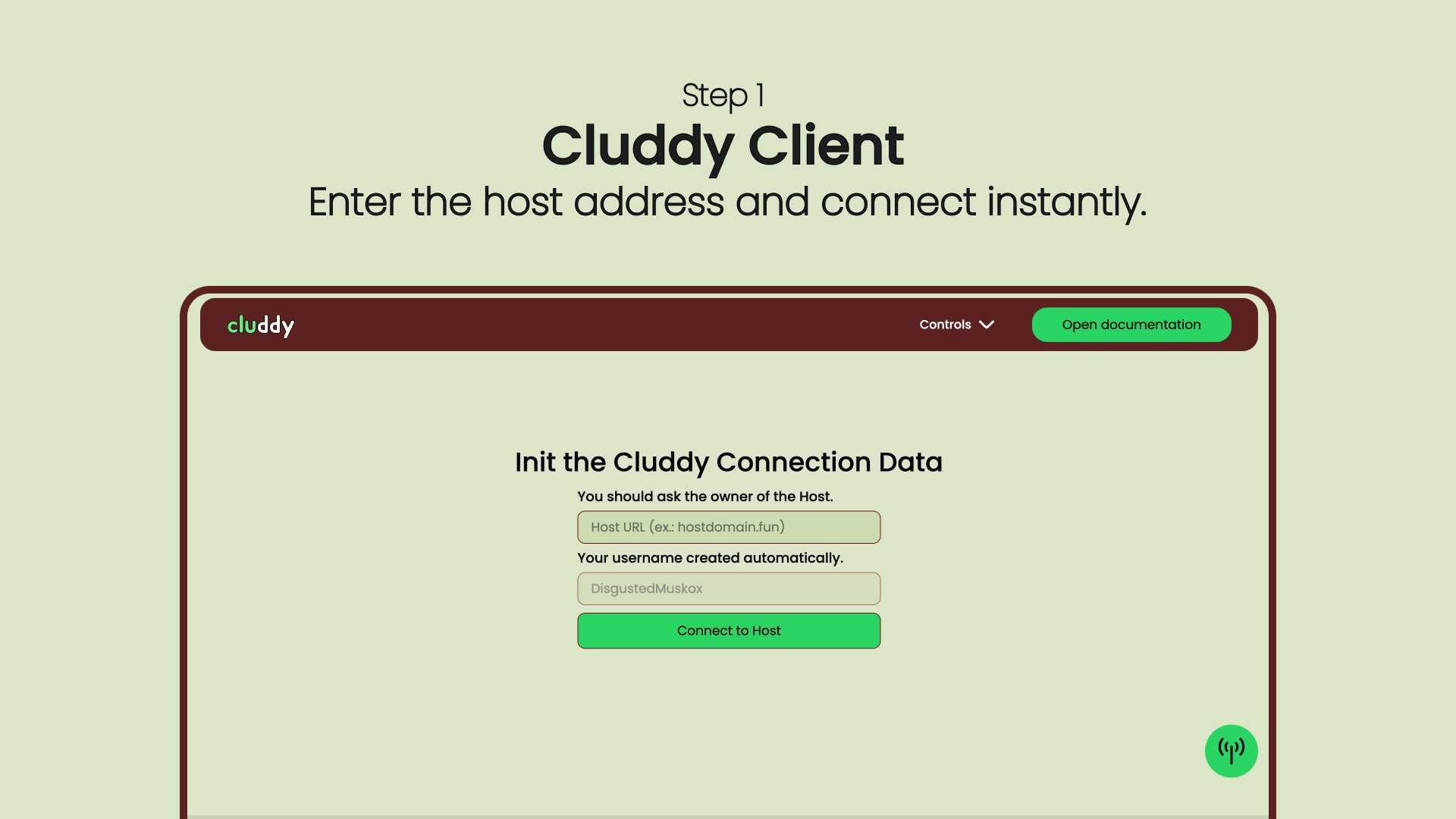
5. Access the web interfaceWhen Cluddy Client starts, it will automatically open in your default browser.If it doesn’t open automatically, but no errors are shown in the terminal, manually open:
http://localhost:8080
6. Next stepsOnce the client interface is open, follow the instructions displayed in the web client to proceed.